前言
很多时候我们打开电脑,使用中文输入法的时候,无法输入,只能输入英文;或许有些情况可能好点,比如聊QQ没问题,浏览器不能输入.
像这种情况下一般重启输入法程序就可以了
解决办法
打开’开始’->’运行’->’Ctfmon.exe’->回车即可.
前言
很多时候我们打开电脑,使用中文输入法的时候,无法输入,只能输入英文;或许有些情况可能好点,比如聊QQ没问题,浏览器不能输入.
像这种情况下一般重启输入法程序就可以了
解决办法
打开’开始’->’运行’->’Ctfmon.exe’->回车即可.
登陆
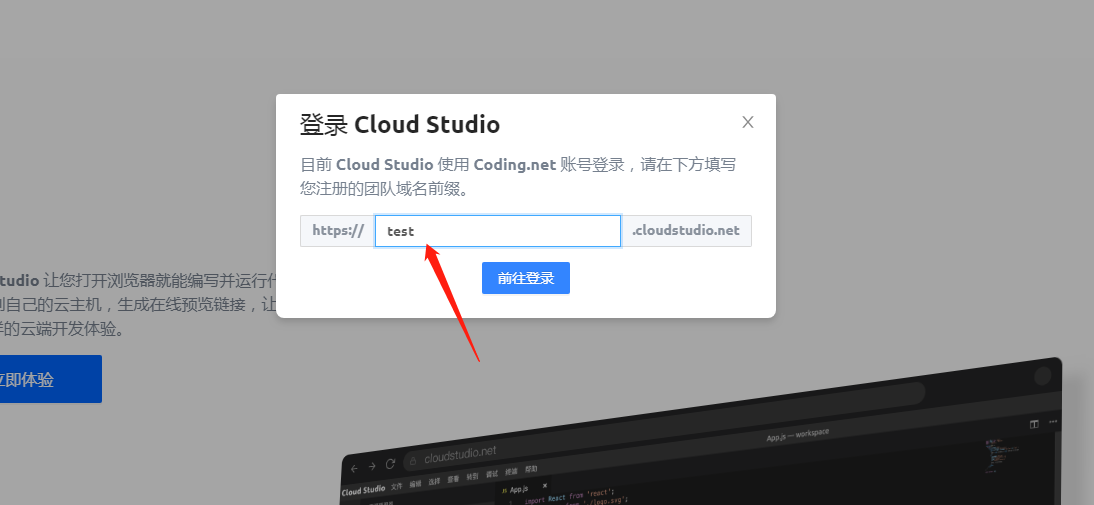
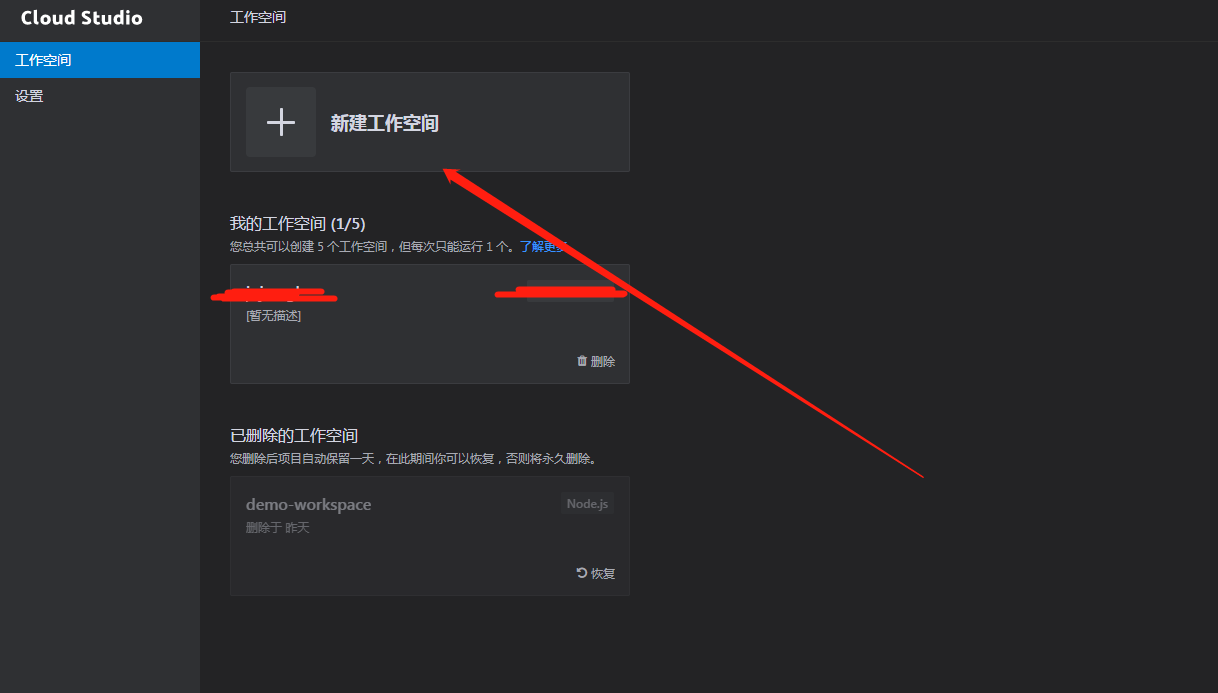
打开网址https://cloudstudio.net/,找到登陆入口,登陆.如下图:
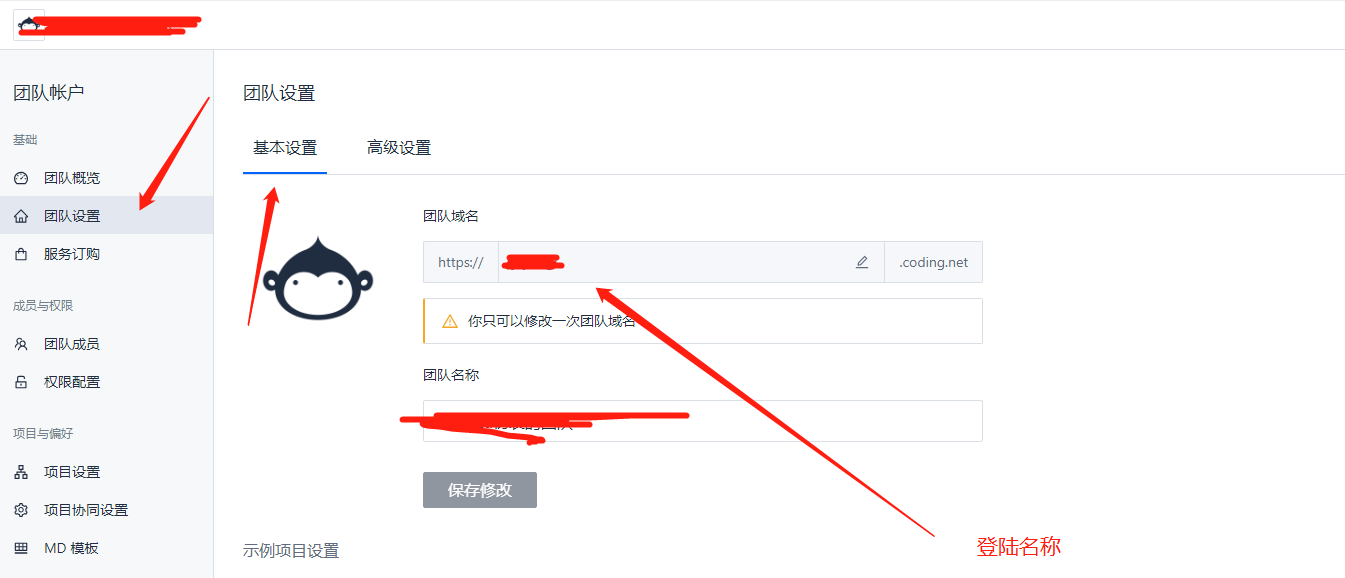
要求输入团队域名,这里需要你先注册过coding网的账号,这个可以从coding网,如下图所示的地方找到
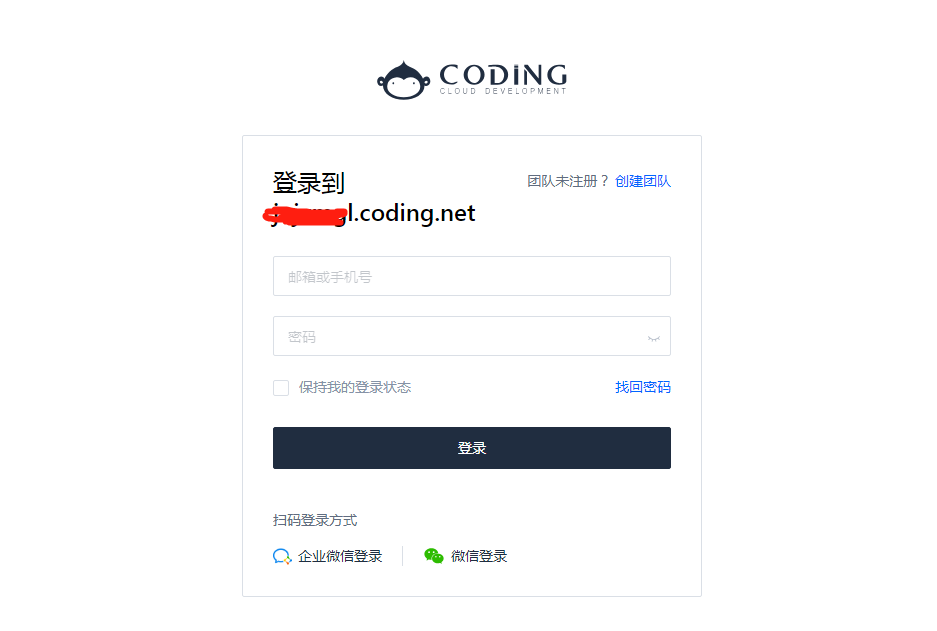
下一步要求登陆关联的coding账号
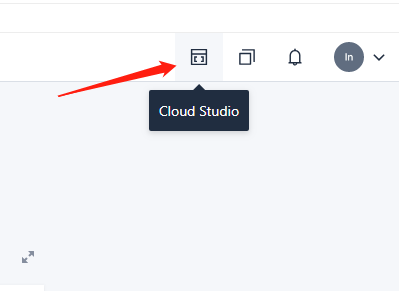
捷径如下图:
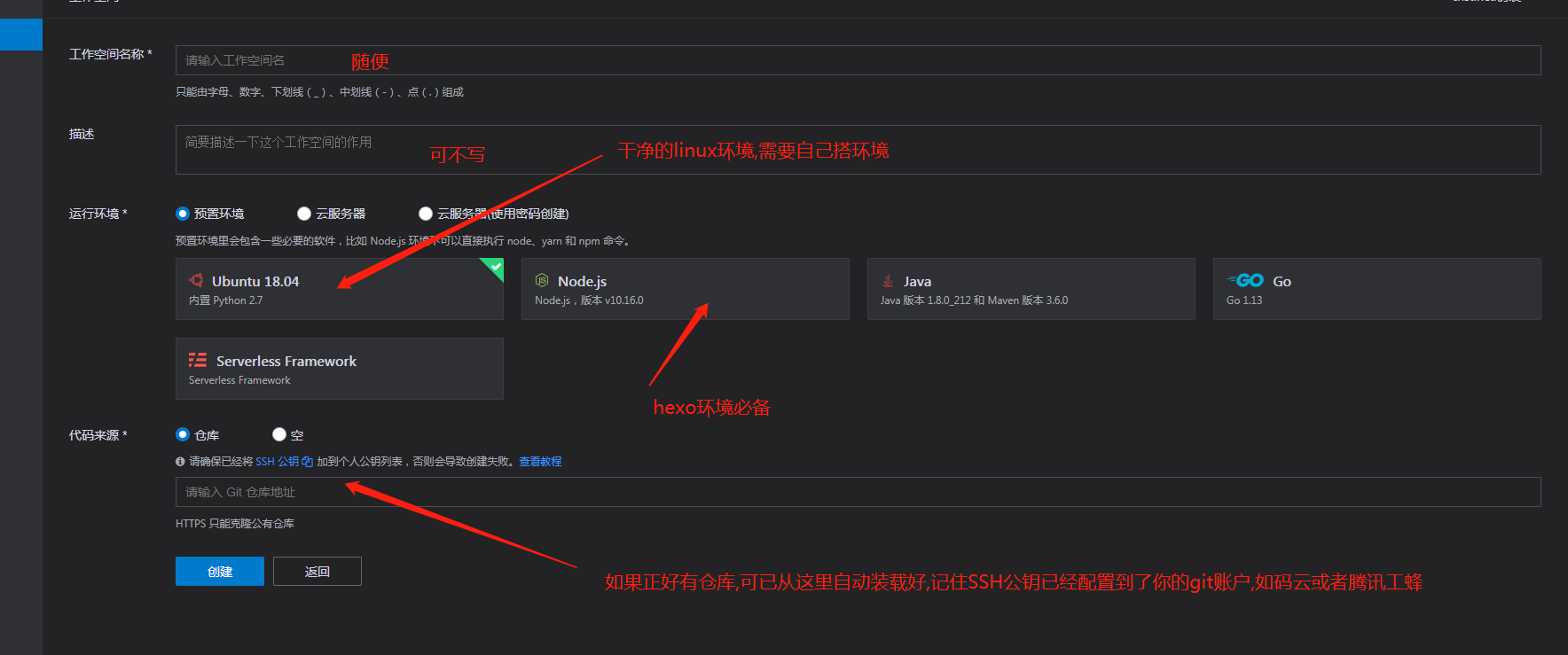
创建工作空间
第一步
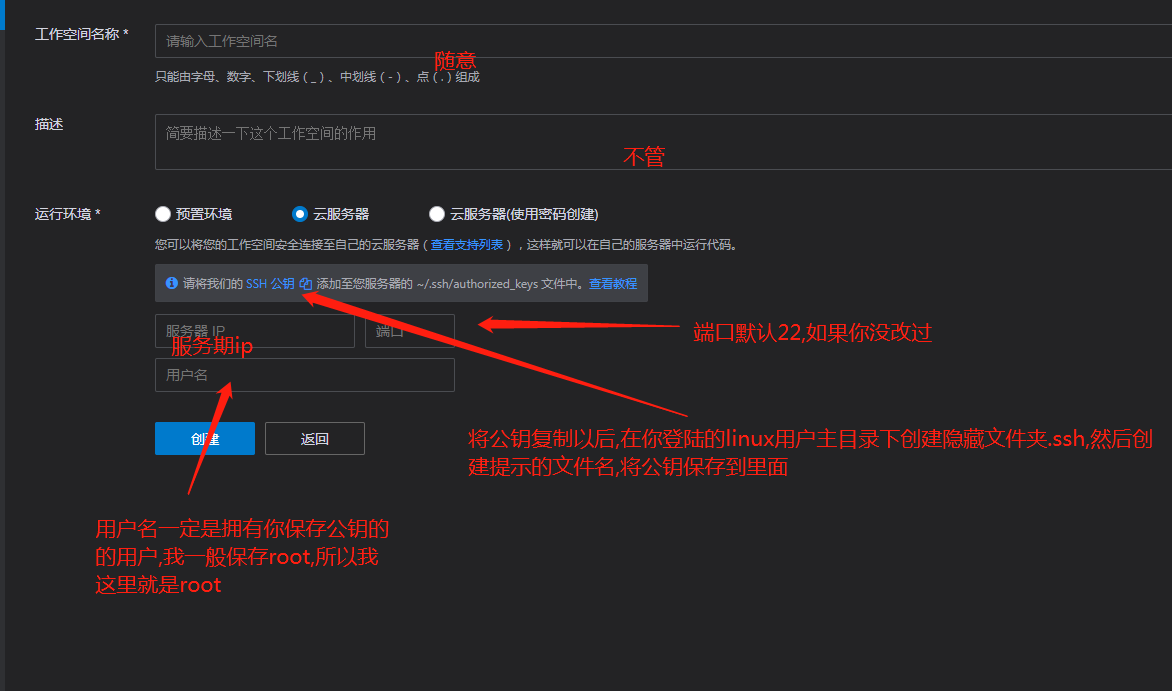
第二步
如过你需要自定义服务器,忽略第二步
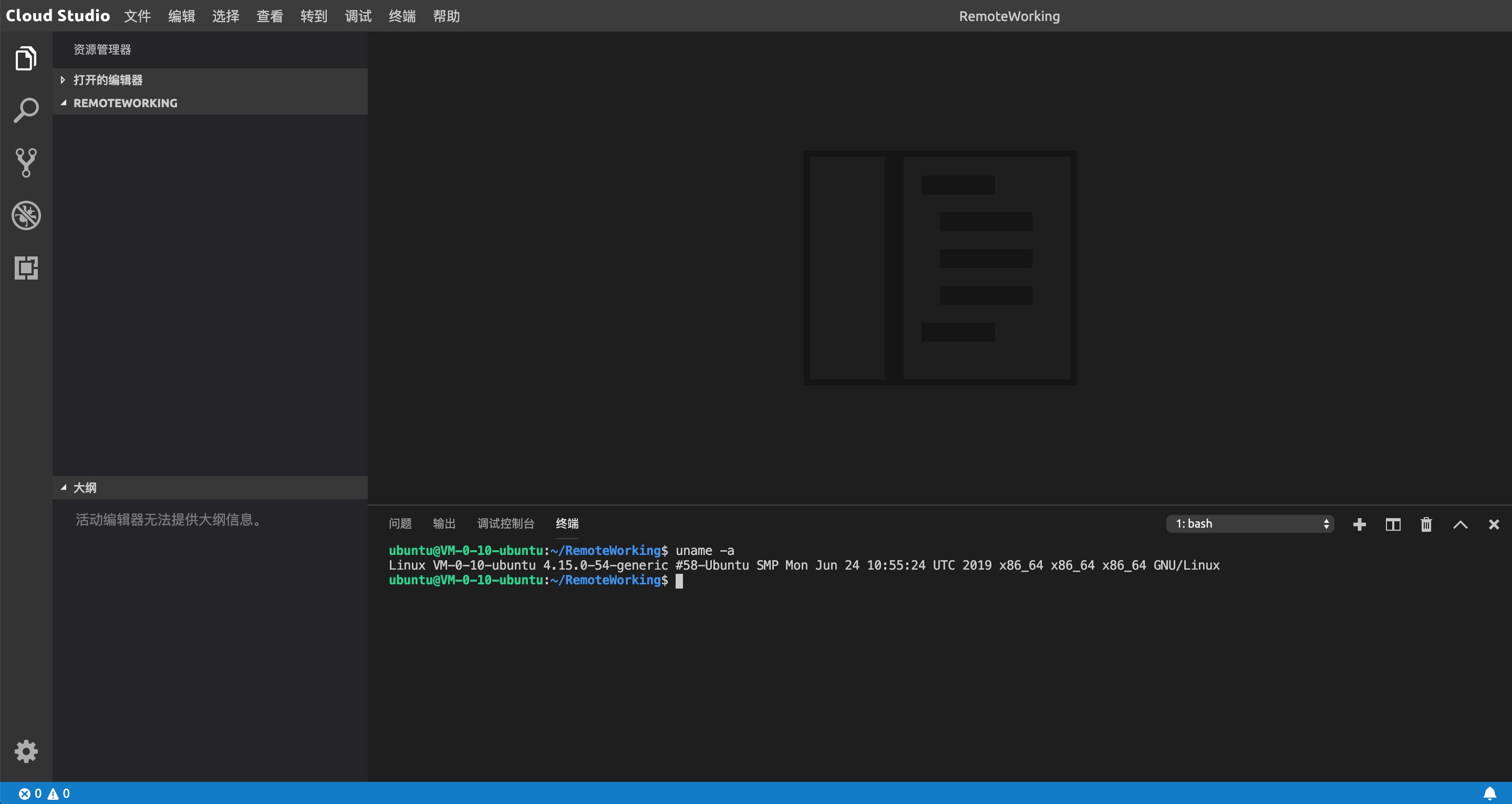
然后点击创建即可.
开始尽情使用吧
安装
首先,在Hexo根目录下,安装插件:
1 | npm install hexo-baidu-url-submit --save |
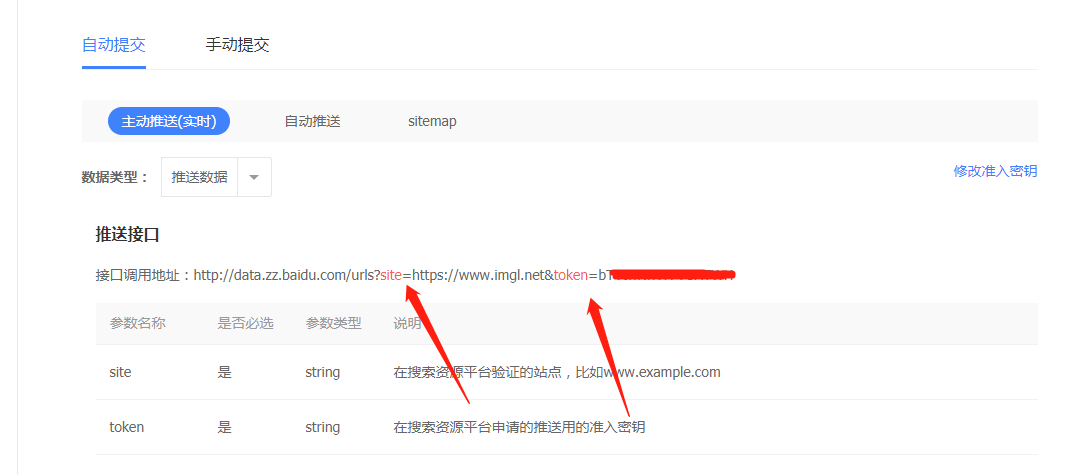
然后,同样在根目录下,把以下内容配置到_config.yml文件中:
baidu_url_submit:
count: 1 ## 提交最新的一个链接,这里要根据baidu_urls.txt文档中的实际链接数量
host: www.imgl.net ## 在百度站长平台中注册的域名
token: your_token ## 请注意这是您的秘钥, 所以请不要把博客源代码发布在公众仓库里!
path: baidu_urls.txt ## 文本文档的地址, 新链接会保存在此文本文档里其次,记得查看_config.yml文件中url的值, 必须包含是百度站长平台注册的域名(一般有www), 比如:
# URL
url: http://www.imgl.net
root: /
permalink: :year/:month/:day/:title
最后,加入新的deployer:
deploy:
  - type: baidu_url_submitter   # 百度
  # - type: baidu_xz_url_submitter # 百度熊掌号
  - bucket: imgl.net
- type: baidu_url_submitter ## 这是新加的执行hexo deploy的时候,新的连接就会被推送了。
推送功能的实现,分为两部分:
新链接的产生, hexo generate 会产生一个文本文件,里面包含最新的链接
新链接的提交, hexo deploy 会从上述文件中读取链接,提交至百度搜索引擎
另外备注一下,用的比较多的NEXT主题自带这些功能,可以从配置文件_config.yml中找下,在这里给主题哥点个赞
安装
1 | npm install --save hexo-admin |
apt
1 | jnjxmgl@debian:~$ apt |
apt-get
1 |
|
apt-cache
1 | jnjxmgl@debian:~$ apt-cache |
默认情况下 freebsd 全系并不支持ssh远程访问,可已通过直接操作宿主机实现.
修改sshd配置
修改sshd_config的配置,将
1 | #PermitRootLogin no |
修改成
1 | #PermitRootLogin yes |
注意这两项前面得#需要去掉
重启sshd服务
1 | service sshd restart |
编辑/etc/network/interfaces文件
1 | iface eth0 inet static |
重启网络
1 | systemctl restart networking |
如果默认得网关做了变更,还需要修改/etc/resolv.conf的内容,将
1 | nameserver xxx.xxx.xxx.xxx |
修改成当下得网关,即:
1 | nameserver 192.168.6.2 |
本例子在ubuntu 18.04中可用
在ubuntu server中,找到/etc/netplan/文件夹中的50-cloud-init.yaml文件,配置说明如下:
1 | # This file is generated from information provided by |
应用网络配置
1 | sudo netplan apply |
如果默认得网关做了变更,还需要修改/etc/resolv.conf的内容,将
1 | nameserver xxx.xxx.xxx.xxx |
修改成当下得网关,即:
1 | nameserver 192.168.6.2 |
说明: 我这里讲的是yum安装及配置,编译安装的出门左转.
安装必要源,执行命令:
1 | yum install \ |
安装pure-ftpd
1 | yum install pure-ftpd -y |
安装mariadb
1 | yum install mariadb103-server.x86_64 mariadb103-devel.x86_64 -y |
启动mariadb
1 | systemctl start mariadb |
配置mariadb
1 | mysql_secure_installation |
如下:
Securing the MySQL server deployment.

Connecting to MySQL using a blank password.

VALIDATE PASSWORD PLUGIN can be used to test passwords
and improve security. It checks the strength of password
and allows the users to set only those passwords which are
secure enough. Would you like to setup VALIDATE PASSWORD plugin?

Press y|Y for Yes, any other key for No: #这里直接回车
Please set the password for root here.

New password: #这里设置root密码

Re-enter new password: #这里重复输入
By default, a MySQL installation has an anonymous user,
allowing anyone to log into MySQL without having to have
a user account created for them. This is intended only for
testing, and to make the installation go a bit smoother.
You should remove them before moving into a production
environment.

Remove anonymous users? (Press y|Y for Yes, any other key for No) : y #输入y
Success.


Normally, root should only be allowed to connect from
'localhost'. This ensures that someone cannot guess at
the root password from the network.

Disallow root login remotely? (Press y|Y for Yes, any other key for No) : y #输入y
Success.

By default, MySQL comes with a database named 'test' that
anyone can access. This is also intended only for testing,
and should be removed before moving into a production
environment.


Remove test database and access to it? (Press y|Y for Yes, any other key for No) : y #输入y
- Dropping test database...
Success.

- Removing privileges on test database...
Success.

Reloading the privilege tables will ensure that all changes
made so far will take effect immediately.

Reload privilege tables now? (Press y|Y for Yes, any other key for No) : y #输入y
Success.

All done!
创建ftp用户表
1 | CREATE TABLE users ( |
创建测是用户
1 | insert into users values('test',password(123456),1000,1000,'/usr'); |
配置连接mysql
编辑 /etc/pure-ftpd/pure-ftpd.conf 及 /etc/pure-ftpd/pureftpd-mysql.conf 两个配置文件
在第一个配置文件中,将
# MySQLConfigFile /etc/pure-ftpd/pureftpd-mysql.conf前面的 # 去掉另外注意该配置中的
MinUID 1000这里指定最小的 UID 是 1000 , 前面创建用户的时候,表字段 UID GID 的取值不能小于 1000 ;
然后在第二个配置文件中,将如下配置改成你的mysql连接信息
# MYSQLServer     127.0.0.1 #跟MYSQLSocket互斥,用一个就行
MYSQLSocket     /var/lib/mysql/mysql.sock
MYSQLUser       root #mysql连接用户
MYSQLPassword   123456 #mysql连接密码
MYSQLDatabase   pureftpd #数据库名称
MYSQLCrypt      password #加密函数
#用户表中的Password字段加密方式,该值表示使用mysql的password函数进行加密,如:password(123456),实际存储的字段值是*6BB4837EB74329105EE4568DDA7DC67ED2CA2AD9
最后启动pure-ftpd
1 | systemctl start pure-ftpd |
这样就配置完了,赶紧使用ftp工具连接一下吧,账号是test 密码是123456 ,注意不要忘了在服务器开启21端口或者关闭服务器防火墙
先决条件
两到三个运行mariadb的服务器,这里使用192.168.91.129,192.168.91.130,192.168.91.131
安装ius和epel源
在centos7上执行命令
1 | yum install https://repo.ius.io/ius-release-el7.rpm https://dl.fedoraproject.org/pub/epel/epel-release-latest-7.noarch.rpm -y |
安装完成后请自行配置国内源
安装mariadb及mariadb-galera
在centos7上执行命令
1 | yum install mariadb103-server.x86_64 mariadb103-server-galera.x86_64 -y |
关闭防火墙及selinux
1 | systemctl stop firewalld #如果有特殊需求,galera模式下使用4567端口,需要同时开启UDP和TCP的4567端口 |
vi /etc/selinux/config
1 | SELINUX=disabled |
配置
进入目录/etc/my.cnf.d , vi 编辑 galera.cnf文件,将文件中的
1 | Group communication system handle |
改为
1 | Group communication system handle |
启动
在三个服务器中的任何一个中,执行命令启动
1 | galera_new_cluster |
剩下的两个使用
1 | systemctl start mariadb |
查看结果
登陆任何一台mariadb服务器
查看一下全局变量wsrep_cluster_size对应的值是3就对了
下面可已在任意一台mariadb中创建数据库看下,其余两个是不是都有了