人生最重要的不是努力,而是方向

0%

安装

[root@imgl samba]# yum -y install samba

配置

进入samba配置目录

[root@imgl samba]# cd /etc/samba/

备份smb.conf

[root@imgl samba]# cp smb.conf smb.conf.bak

编辑smb.conf

[root@imgl samba]# vi smb.conf

修改为如下内容

[global]
    workgroup = WORKGROUP
    security = user
    server string = Samba Server Version %v
    passdb backend = tdbsam
    map to guest = Bad User

[FileShare]
        comment = share some files
        path = /smb/fileshare
        public = yes
        writeable = yes
        create mask = 0644
        directory mask = 0755

[WebDev]
        comment = project development directory
        path = /smb/webdev
        valid users = mgl
        write list = mgl
        printable = no
        create mask = 0644
        directory mask = 0755

保存并推出
注释:

workgroup 项应与 Windows 主机保持一致,这里是WORKGROUP

再下面有两个section,实际为两个目录,section名就是目录名(映射到Windows上可以看见)。
第一个目录名是FileShare,匿名、公开、可写
第二个目录吗是WebDev,限定mgl用户访问
默认文件属性644/755(不然的话,Windows上在这个目录下新建的文件会有“可执行”属性)

创建用户

[root@imgl samba]# groupadd nfs
[root@imgl samba]# useradd mgl -g nfs -s /sbin/nologin
[root@imgl samba]# smbpasswd -a mgl
New SMB password:
Retype new SMB password:
Added user mgl.
[root@imgl samba]# 

注意这里smbpasswd将使用系统用户。设置密码为1

创建共享目录

[root@imgl samba]# mkdir -p /smb/{fileshare,webdev}
[root@imgl samba]# chown nobody:nogroup /smb/fileshare/
[root@imgl samba]# chown mgl:nfs /smb/webdev/

注意设置属性,不然访问不了。

启动Samba服务,设置开机启动

[root@imgl samba]# systemctl start smb
[root@imgl samba]# systemctl enable smb
Created symlink from /etc/systemd/system/multi-user.target.wants/smb.service to /usr/lib/systemd/system/smb.service.
[root@imgl samba]# 

开放端口

[root@imgl samba]# firewall-cmd --permanent --add-port=139/tcp
success
[root@imgl samba]# firewall-cmd --permanent --add-port=445/tcp
success
[root@imgl samba]# systemctl restart firewalld
[root@imgl samba]# 

或者直接把防火墙关了也行

最后一个相当重要, 如果你使用的是centos, 那么你需要关闭Selinux, 操作如下:

临时关闭

[root@localhost ~]# getenforce #查看当前状态
Enforcing

[root@localhost ~]# setenforce 0 #临时关闭
[root@localhost ~]# getenforce #查看当前状态
Permissive

永久关闭

[root@localhost ~]# vi /etc/sysconfig/selinux

SELINUX=enforcing 改为 SELINUX=disabled

重启操作系统

reboot

使用

在windows系统的运行那里, 输入:\\你的ip

如果有密码账户验证, 账户时mgl密码是1

参考文章(https://www.cnblogs.com/nidey/p/6195483.html)

如过我们再使用linux时, 使用ifconfig查看主机ip提示, 如下图:

1
-bash: ifconfig: command not found

是因为我门没有安装相关的命令程序.

centos7

再centos7中, 我们可以使用命令

yum search ifconfig

来确认需要安装的程序包, 比如我执行命令后会得到如下结果:

{% asset_img azb.PNG 找到相关安装包名 %}

根据提示, 我们执行, 如下图

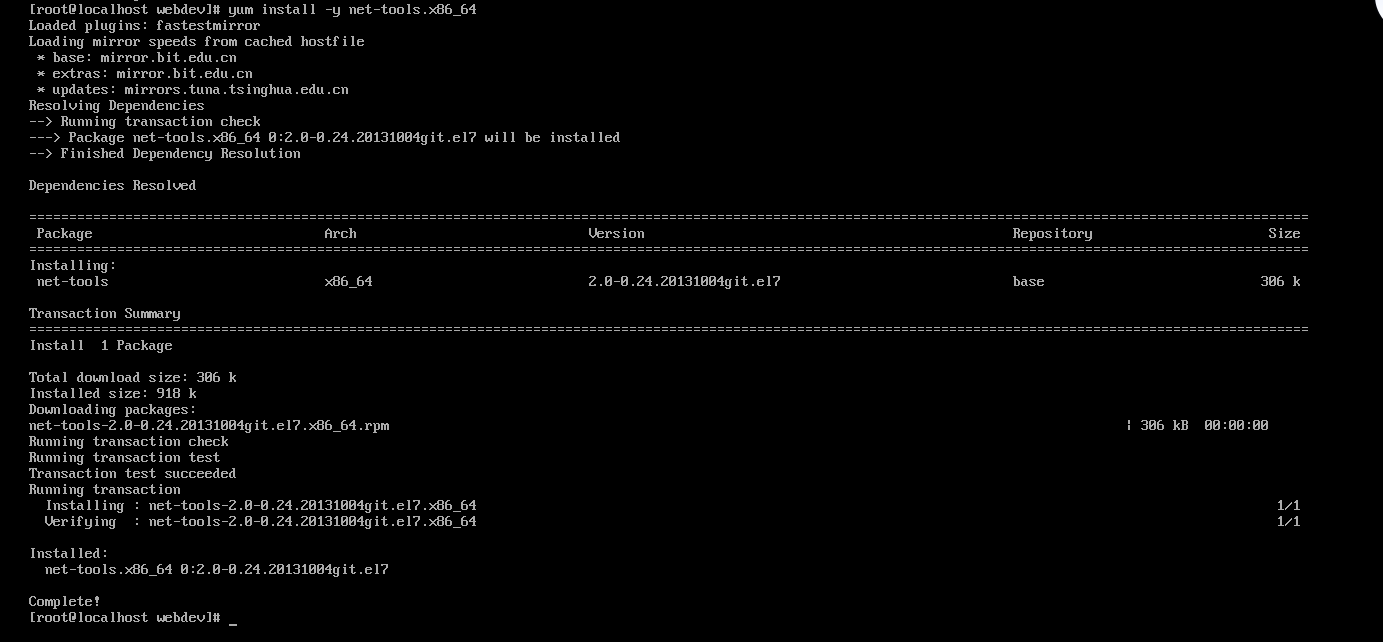
yum install -y net-tools.x86_64

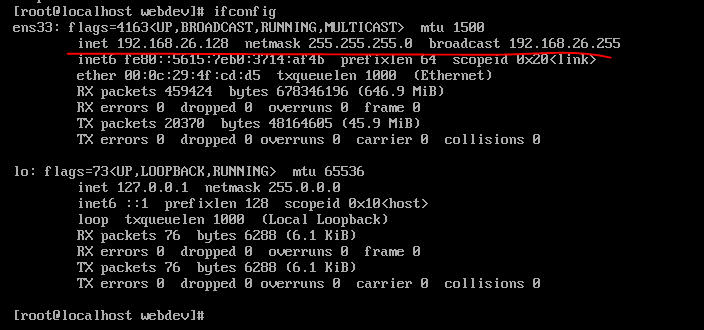
最后我们再次执行 ifconfig , 就可以看到我们的网络ip配置信息了.

最后说一下: ifconfig 和windows系统下的 ipconfig 很像, 很多初学者会在linux中执行ipconfig, 这显然是不可以的, 请认真识别, 不要犯这种低级错误

首先安装supervisor, 此步骤略过, 在centos7使用命令

yum install supervisor -y

增加开机启动

systemctl enable supervisord

supervisord 的配置 文件是 /etc/supervisord.conf

打开

vi /etc/supervisord.conf

添加以下内容

[program:idea-server]

command=/home/IdeaServer -p 1024

autostart=true

autorestart=true

startsecs=3

注: IdeaServer 文件是许可文件, 需要具备执行权限, 添加执行权限

chmod +x IdeaServer

重启supervisord , 命令

supervisorctl reload

让配置生效

nginx代理:

server
{

    listen 80; 

    server_name idea.test.com; 

    location / {

        proxy_pass http://127.0.0.1:1017;

        proxy_redirect off;

    }
}

1
2
3
4
5
6
7
8
9
10
11
12
13
14
15
16
17
18
19
20
21
22
23
24
25
26
27
28
29
30
31
32
33
34
35
36
37
38
39
40
41
42
43
44
45
46
47
48
49
/// <summary>

/// EXCEL数据转换DataSet
/// </summary>
/// <param name="filePath">文件全路径</param>
/// <param name="search">表名</param>
/// <returns></returns>
private DataSet GetDataSet(string fileName)
{
string strConn = "Provider=Microsoft.ACE.OLEDB.12.0;Data Source=" + fileName + ";Extended Properties='Excel 12.0;HDR=Yes;IMEX=1';";
OleDbConnection objConn = null;
objConn = new OleDbConnection(strConn);
objConn.Open();
DataSet ds = new DataSet();
//List<string> List = new List<string> { "收款金额", "代付关税", "垫付费用", "超期", "到账利润" };
List<string> List = new List<string> { };
DataTable dtSheetName = objConn.GetOleDbSchemaTable(OleDbSchemaGuid.Tables, new object[] { null, null, null, "TABLE" });
foreach (DataRow dr in dtSheetName.Rows)
{
if (dr["Table_Name"].ToString().Contains("$") && !dr[2].ToString().EndsWith("$"))
{
continue;
}
string s = dr["Table_Name"].ToString();
List.Add(s);
}
try
{
for (int i = 0; i < List.Count; i++)
{
ds.Tables.Add(List[i]);
string SheetName = List[i];
string strSql = "select * from [" + SheetName + "]";
OleDbDataAdapter odbcCSVDataAdapter = new OleDbDataAdapter(strSql, objConn);
DataTable dt = ds.Tables[i];
odbcCSVDataAdapter.Fill(dt);
}
return ds;
}
catch (Exception ex)
{
return null;
}
finally
{
objConn.Close();
objConn.Dispose();
}
}

定义变量赋值:

declare @i int default 0;

set @i=100;

select @i;

将变量@i重命名为i

select @i i;

结果对象赋值:

select username into @j from wp_admin_user where id=3;

select @j;

备份所有数据库:

mysqldump -u root -p root –-quick -–force -–all-databases > mysqldump.sql

还原数据

mysql -u root -p root < mysqldump.sql

备份单个数据库的数据和结构(数据库名TEST)

mysqldump -u root -p 123456 test > test.sql

还原单个数据库 (数据库名TEST)

mysql -u root -p 123456 test < test.sql

1
2
3
4
5
6
7
8
9
10
11
12
13
14
15
16
17
18
var request = require('request');
var fs = require('fs');
setInterval(function() {

request('http: //127.0.0.1/index.php/api/api/open', function(error, response) {
fs.writeFile('open.txt', '状态码: ' + response.statusCode + '时间:' + new Dat() + '\r\ n', {
encoding: 'utf8',
mode: '0666',
flag: 'a'
},
function(err) {
if (err) {
return console.error(err);
}
});
});
},
10000);

obj.value = obj.value.replace(/1/g, ""); //清除"数字"和"."以外的字符
obj.value = obj.value.replace(/^./g, ""); //验证第一个字符是数字而不是字符         
obj.value = obj.value.replace(/.{2,}/g, "."); //只保留第一个.清除多余的       
obj.value = obj.value.replace(".", "$#$").replace(/./g, "").replace("$#$", ".");
obj.value = obj.value.replace(/^(-)(d+).(dd).$/, '$1$2.$3'); //只能输入两个小数

1、去官网下载和自己系统匹配的文件:

英文网址:https://nodejs.org/en/download/
中文网址:http://nodejs.cn/download/
通过 uname -a 命令查看输出的内容是否包含x86_64或i686 i386(备注:x86_64表示64位系统, 表示32位系统);

2、下载下来的tar文件上传到服务器并且解压,然后通过建立软连接变为全局;

1)上传服务器可以是自己任意路径,目前我的放置路径为 cd/opt/soft/
2)解压上传(解压后的文件我这边将名字改为了nodejs,这个地方自己随意,只要在建立软连接的时候写正确就可以)

tar -xvf node-v6.10.0-linux-x64.tar.xz
mv node-v6.10.0-linux-x64 nodejs

确认一下nodejs下bin目录是否有node 和npm文件,如果有执行软连接,如果没有重新下载执行上边步骤;

3)建立软连接,变为全局

ln -s /opt/soft/nodejs/bin/npm /usr/local/bin/
ln -s /opt/soft/nodejs/bin/node /usr/local/bin/

4)最后一步检验nodejs是否已变为全局

在Linux命令行

node -v

命令会显示nodejs版本, 即表示创建软连接成功, 安装nodejs成功.