安装编译环境
yum -y install gcc gcc-c++下载nodejs 命令:
wget https://nodejs.org/dist/latest-v0.12.x/node-v0.12.18.tar.gz解压
tar -zxvf node-v0.12.18.tar.gz进入解压后的目录
cd node-v0.12.18安装
./configure && make && make install安装编译环境
yum -y install gcc gcc-c++下载nodejs 命令:
wget https://nodejs.org/dist/latest-v0.12.x/node-v0.12.18.tar.gz解压
tar -zxvf node-v0.12.18.tar.gz进入解压后的目录
cd node-v0.12.18安装
./configure && make && make install1、firewalld的基本使用
启动:
systemctl start firewalld关闭:
systemctl stop firewalld查看状态:
systemctl status firewalld开机禁用 :
systemctl disable firewalld开机启用 :
systemctl enable firewalld2.systemctl是CentOS7的服务管理工具中主要的工具,它融合之前service和chkconfig的功能于一体。
启动一个服务:
systemctl start firewalld.service关闭一个服务:
systemctl stop firewalld.service重启一个服务:
systemctl restart firewalld.service显示一个服务的状态:
systemctl status firewalld.service在开机时启用一个服务:
systemctl enable firewalld.service在开机时禁用一个服务:
systemctl disable firewalld.service查看服务是否开机启动:
systemctl is-enabled firewalld.service查看已启动的服务列表:
systemctl list-unit-files | grep enabled查看启动失败的服务列表:
systemctl --failed
- 配置firewalld-cmd
查看版本:
firewall-cmd --version查看帮助:
firewall-cmd --help显示状态:
firewall-cmd --state查看所有打开的端口:
firewall-cmd --zone=public --list-ports更新防火墙规则:
firewall-cmd --reload查看区域信息:
firewall-cmd --get-active-zones查看指定接口所属区域:
firewall-cmd --get-zone-of-interface=eth0拒绝所有包:
firewall-cmd --panic-on取消拒绝状态:
firewall-cmd --panic-off查看是否拒绝:
firewall-cmd --query-panic那怎么开启一个端口呢, 添加
firewall-cmd --zone=public --add-port=80/tcp --permanent(––permanent永久生效,没有此参数重启后失效)
重新载入
firewall-cmd --reload查看
firewall-cmd --zone=public --query-port=80/tcp删除
firewall-cmd --zone=public --remove-port=80/tcp --permanent结束
域名一个domain.com(以下地方改成你自己的)
接入公网的云主机或物理主机
一个可用的SSL证书,可以去腾讯云和阿里云申请,申请域名要使用你自己的mai.domain.com
将houstname主机名称改为mail.domain.com,可用命令 hostnamectl set-hostname " mail.domain.com"
在/etc/hosts中增加本地解析, vi /etc/hosts 加入一行
100.100.100.100 mail.domain.com# 注: 100.100.100.100 改成你主机的公网ip
安装postfix,执行命令:
yum install postfix -y配置postfix,postfix默认配置文件在/etc/postfix/main.cf,但是为了更改过中的错误,我们使用postconf -e命令,例如:postconf -e “myhostname=mail.domain.com”,这里的双引号也可用单引号。如下我列出来了需要修改的内容,其中含义自行去postfix官方文档查阅:
myhostname=mail.domain.com
mydomain=domain.com
myorigin=$mydomain
inet_interfaces=all
inet_protocols=all
mydestination=$myhostname, localhost.$mydomain, localhost, $mydomain
home_mailbox=Maildir / #申请的证书存放位置可自定义, 路径是绝对路径
smtpd_tls_cert_file=/etc/pki/tls/certs/postfix.pem
smtpd_tls_key_file=/etc/pki/tls/certs/postfix.key
smtpd_sasl_security_options=noanonymous
broken_sasl_auth_clients=yes #注 使用postconf命令时 $、 / 可能无法被加入到配置文件中, 可使用\ $\ / 进行转义
配置master.cf,将如下内容前面的#全部去掉
smtp inet n-n--smtpd
submission inet n-n--smtpd -
    o smtpd_tls_security_level=encrypt -
    o smtpd_sasl_auth_enable=yes -
    o smtpd_client_restrictions=permit_sasl_authenticated, reject -
    o milter_macro_daemon_name=ORIGINATING
smtps inet n-n--smtpd -
    o smtpd_tls_wrappermode=yes -
    o smtpd_sasl_auth_enable=yes -
    o smtpd_client_restrictions=permit_sasl_authenticated, reject -
    o milter_macro_daemon_name=ORIGINATING
安装dovecot
yum install dovecot -y配置 dovecot
打开 [/etc/dovecot/dovecot.conf] 文件,配置将
protocols=imap pop3前的#号去掉,保存。
编辑[/etc/dovecot/conf.d/10-auth.conf] ,配置
disable_plaintext_auth=yes
auth_mechanisms=plain login# 增加login
保存。
编辑[/etc/dovecot/conf.d/10-mail.conf] ,配置
mail_location=maildir: ~/Maildir保存。
编辑[/etc/dovecot/conf.d/10-master.conf] ,配置
unix_listener auth-userdb {#
    mode=0600
    user=postfix
    group=postfix

}
编辑[/etc/dovecot/conf.d/10-ssl.conf] ,配置
ssl=required编辑[/etc/dovecot/conf.d/15-mailboxes.conf]
namespace inbox {#
    找到这个地方增加 inbox=yes
    inbox=yes
        ....
最后安装saslauthd
yum -y install cyrus-sasl
yum -y install cyrus-sasl-plain
service saslauthd start# 启动
chkconfig saslauthd on# 开机启动
配置完毕,系统用户就是邮箱用户 ,一般使用root是被认为粗鲁的,所以创建admin账户,执行脚本如下:
useradd admin
passwd admin# 设置密码, 会被要求输入两次密码进行确认
最后记得开启25、465、993、995端口
firewall-cmd --zone=public --permanent --add-port =25/tcp
firewall-cmd --zone=public --permanent --add-port=465/tcp
firewall-cmd --zone=public --permanent --add-port=993/tcp
firewall-cmd --zone=public --permanent --add-port=995/tcp
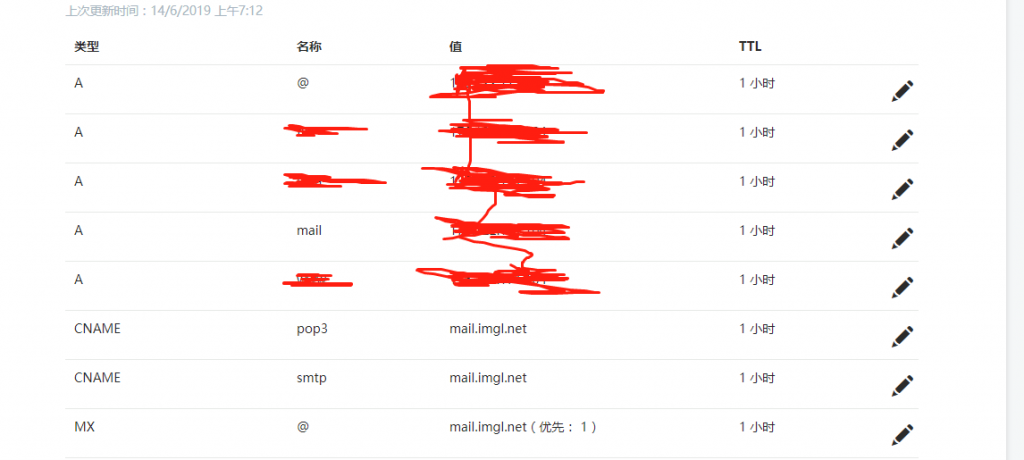
增加域名解析,如下图
注:A记录需要设置@解析和mail解析,ip换成你的,CNAME解析设置这俩就行,MX解析记得设置成你的域名mail.domain.com 优先级随意
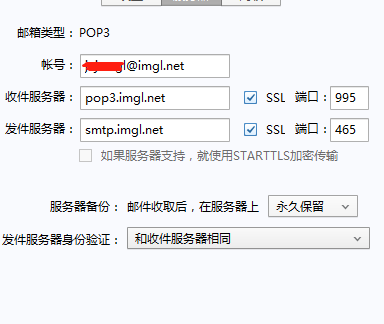
然后我们就能使用admin账户再foxmail上登陆邮箱了。
安装python,安装过程遇到Y/n的一律输入Y(按顺序执行下面命令):
yum install python-setuptools安装pip,依次执行下面几个命令:
wget https: //files.pythonhosted.org/packages/36/fa/51ca4d57392e2f69397cd6e5af23da2a8d37884a605f9e3f2d3bfdc48397/pip-19.0.3.tar.gz

tar -xzvf pip-19.0 .3.tar.gz

cd pip-19.0 .3

python setup.py install
每行代表一个命令, 依次执行.
安装Shadowsocks:
pip install shadowsocks出现Successfully installed shadowsocks关键字说明安装成功了
输入以下命令创建shadowsocks.json配置文件:
vi /etc/shadowsocks.json按一下i进入输入模式:
1 | { |
“server”:是你服务器的ip地址
“server_port”和”password”可以根据自己的要求设定
如果需要同时开多个端口,config.json的内容可以设置如下:
1 | { |
执行以下命令启动Shadowsocks:
ssserver -c /etc/shadowsocks.json-d start永久开启8388端口
firewall-cmd -–zone=public --add-port=8388/tcp –-permanent因为centos7防火墙是firewall , centos6的自行百度开启端口的方法
centos7安装supervisor
yum install supervisor生成配置文件
echo_supervisord_conf > /etc/supervisord.conf1. 启动supervisord
命令:
supervisord命令:
vi /etc/supervisord.conf按i进入编辑模式, 输入:
[program: shadowsocks]

command = ssserver-c /etc/shadowsocks.json

autostart = true

autorestart = true

startsecs = 3
刷新配置
supervisorctl reload
启动supervisord管理的所有进程
supervisorctl start all
查看运行状态
supervisorctl status
如果shadowsocks 是RUNNING状态说明成功了
注:个人vpn使用目前不被国家认可,shadowsocks的流量已经被识别,随时可能会封你的服务器ip,推荐使用 v2ray ,配置使用请在本博客中搜索
centos7安装
yum install supervisor生成配置文件
echo_supervisord_conf > /etc/supervisord.conf【启动supervisord】
supervisord【停止supervisord】
supervisorctl shutdown【重新加载配置文件】
supervisorctl reload【进程管理】
启动supervisord管理的所有进程
supervisorctl start all停止supervisord管理的所有进程
supervisorctl stop all启动supervisord管理的某一个特定进程
supervisorctl start program-name // program-name为[program:xx]中的xx停止supervisord管理的某一个特定进程
supervisorctl stop program-name // program-name为[program:xx]中的xx重启所有进程或所有进程
supervisorctl restart all // 重启所有

supervisorctl reatart program-name // 重启某一进程,program-name为[program:xx]中的xx
查看supervisord当前管理的所有进程的状态
supervisorctl status开机启动
supervisorctl enable supervisor【遇到问题及解决方案】
在使用命令supervisorctl start all启动控制进程时,遇到如下错误
unix:///tmp/supervisor.sock no such file出现上述错误的原因是supervisord并未启动,只要在命令行中使用命令sudo supervisord启动supervisord即可, 或者重启服务器
官方解释: Webmin是一个基于Web的界面,用于Unix的系统管理。使用任何现代Web浏览器,您可以设置用户帐户,Apache,DNS,文件共享等等。Webmin无需手动编辑/etc/passwd等 Unix配置文件,并允许您从控制台或远程管理系统。
友情链接: http://www.webmin.com/
有些时候我们在安装相应的源以后, 直接使用命令安装源中的软件, 会提示软件包不存在, 这种情况下
代码如下:
[root@imgl ~]# yum install nginx --enablerepo=epel稍微解释一下:
代码如下:
yum install XXX –enablerepo=YYY
XXX是要安装的软件,YYY是repo源的名字。
建议安装的时候尽量选择同一个源。
因为不同的源安装的软件可能会有冲突。
引用源
作者:在马其顿的街角
链接:(https://www.jianshu.com/p/c22faafc7b8b)
来源:简书
错误信息
[root @izwz9i1fkp1z7n0olwliafz~]# tar -jxvf test.tar.bz2
tar(child): bzip2: Cannot exec: No such file or directory
tar(child): Error is not recoverable: exiting now
tar: Child returned status 2
tar: Error is not recoverable: exiting now
系统未安装 bzip2 工具包
yum -y install bzip2开启 BBR 要求 4.10 以上版本 Linux 内核,可使用如下命令查看当前内核版本:
uname -r可以得到类似如下的结果:
3.10.0-514.10.2.el7.x86_64如果当前内核版本低于 4.10,可使用 ELRepo 源更新:
sudo rpm --import https://www.elrepo.org/RPM-GPG-KEY-elrepo.org
sudo rpm -Uvh http://www.elrepo.org/elrepo-release-7.0-2.el7.elrepo.noarch.rpm
sudo yum --enablerepo=elrepo-kernel install kernel-ml -y
安装完成后,查看已安装的内核:
rpm -qa | grep kernel得到结果如下:
kernel-3.10 .0-123. el7.x86_64
kernel-headers-3.10 .0-514.16 .1.el7.x86_64
kernel-ml-4.11 .0-1. el7.elrepo.x86_64
kernel-tools-3.10 .0-514.16 .1.el7.x86_64
kernel-3.10 .0-514.16 .1.el7.x86_64
kernel-tools-libs-3.10 .0-514.16 .1.el7.x86_64
在输出中看到 kernel-ml-4.11.0-1.el7.elrepo.x86_64 类似的内容,表示安装成功。
修改grub2引导
执行:
sudo egrep ^menuentry /etc/grub2.cfg | cut -f 2 -d \'会得到如下结果:
CentOS Linux 7 Rescue a0cbf86a6ef1416a8812657bb4f2b860(4.11 .0-1. el7.elrepo.x86_64)
CentOS Linux(4.11 .0-1. el7.elrepo.x86_64) 7(Core)
CentOS Linux(3.10 .0-514.16 .1.el7.x86_64) 7(Core)
CentOS Linux(3.10 .0-123. el7.x86_64) 7(Core)
CentOS Linux(0-rescue-2 d3f9371c20d3e90a544ccc814d485e3) 7(Core)
由于序号从0开始,设置默认启动项为1并重启系统:
sudo grub2-set-default 1
reboot
重启完成后,重新登录并重新运行uname命令来确认你是否使用了正确的内核:
uname -r得到如下结果则升级成功:
4.11.0-1.el7.elrepo.x86_64开启BBR
执行:
echo 'net.core.default_qdisc=fq' | sudo tee -a /etc/sysctl.conf
echo 'net.ipv4.tcp_congestion_control=bbr' | sudo tee -a /etc/sysctl.conf
sudo sysctl -p
完成后,分别执行如下命令来检查 BBR 是否开启成功:
sudo sysctl net.ipv4.tcp_available_congestion_control# 输出应为 net.ipv4.tcp_available_congestion_control = bbr cubic reno
sudo sysctl -n net.ipv4.tcp_congestion_control # 输出应为 bbr
lsmod | grep bbr# 输出应类似 tcp_bbr 16384 281 | <link rel="stylesheet" href="//code.jquery.com/ui/1.12.1/themes/smoothness/jquery-ui.css"> |
1 | $("#end_date").datepicker({ |