本教程以ubuntu18.04为例
修改 ubuntu 默认源站为
清华大学开源镜像站,操作如下:
Ubuntu 的软件源配置文件是 /etc/apt/sources.list。将系统自带的该文件做个备份,将该文件替换为下面内容,即可使用 TUNA 的软件源镜像。
deb https://mirrors.tuna.tsinghua.edu.cn/ubuntu/ bionic main restricted universe multiverse

deb-src https://mirrors.tuna.tsinghua.edu.cn/ubuntu/ bionic main restricted universe multiverse

deb https://mirrors.tuna.tsinghua.edu.cn/ubuntu/ bionic-updates main restricted universe multiverse

deb-src https://mirrors.tuna.tsinghua.edu.cn/ubuntu/ bionic-updates main restricted universe multiverse

deb https://mirrors.tuna.tsinghua.edu.cn/ubuntu/ bionic-backports main restricted universe multiverse

deb-src https://mirrors.tuna.tsinghua.edu.cn/ubuntu/ bionic-backports main restricted universe multiverse

deb https://mirrors.tuna.tsinghua.edu.cn/ubuntu/ bionic-security main restricted universe multiverse

deb-src https://mirrors.tuna.tsinghua.edu.cn/ubuntu/ bionic-security main restricted universe multiverse
安装nginx
1.执行安装命令
1 | sudo apt install nginx |
2.启动
1 | sudo systemctl start nginx |
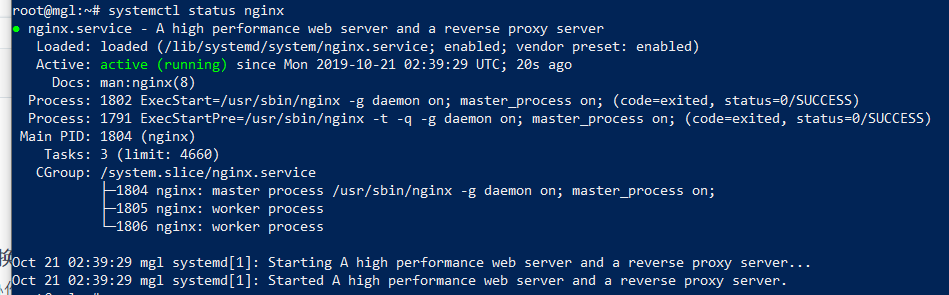
3.验证状态
1 | sudo systemctl status nginx |
如下图,代表安装启动成功。
4.设置开机启动
1 | sudo systemctl enable nginx |
安装php
ubuntu 18.04 源站更新了最新的php7.2,开始安装.
1.安装php7.2
1 | sudo apt install php7.2 php7.2-fpm |
2.启动
1 | sudo systemctl start php7.2-fpm |
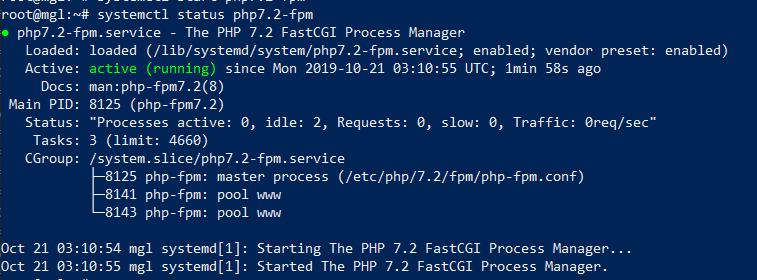
3.验证状态
1 | sudo systemctl status php7.2-fpm |
如下图,代表安装启动成功。
4.设置开机启动
1 | sudo systemctl enable php7.2-fpm |
安装mysql-server
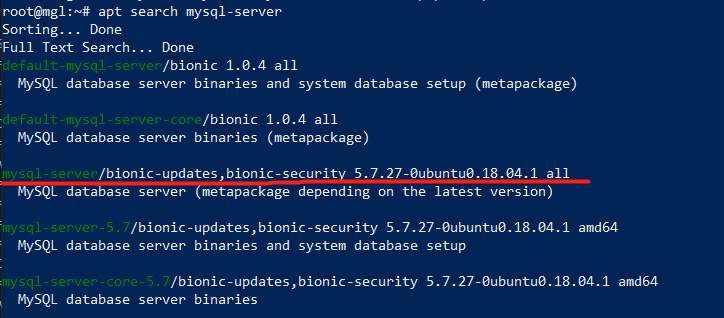
ubuntu 18.04 源站更新了最新的mysql5.7,开始安装.我们可以使用如下命令得到如图所示的包名,方便我们安装.
1 | sudo apt search mysql-server |
1.安装mysql-server5.7
1 | sudo apt install mysql-server |
2.启动
1 | sudo systemctl start mysql |
3.验证状态
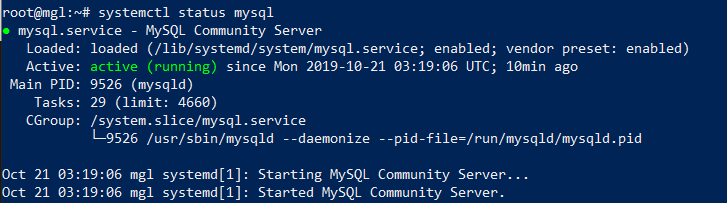
1 | sudo systemctl status mysql |
如下图,代表安装启动成功。
4.设置开机启动
1 | sudo systemctl enable mysql |
5.安全设置
1 | mysql_secure_installation |
如下:
Securing the MySQL server deployment.

Connecting to MySQL using a blank password.

VALIDATE PASSWORD PLUGIN can be used to test passwords
and improve security. It checks the strength of password
and allows the users to set only those passwords which are
secure enough. Would you like to setup VALIDATE PASSWORD plugin?

Press y|Y for Yes, any other key for No: #这里直接回车
Please set the password for root here.

New password: #这里设置root密码

Re-enter new password: #这里重复输入
By default, a MySQL installation has an anonymous user,
allowing anyone to log into MySQL without having to have
a user account created for them. This is intended only for
testing, and to make the installation go a bit smoother.
You should remove them before moving into a production
environment.

Remove anonymous users? (Press y|Y for Yes, any other key for No) : y #输入y
Success.


Normally, root should only be allowed to connect from
'localhost'. This ensures that someone cannot guess at
the root password from the network.

Disallow root login remotely? (Press y|Y for Yes, any other key for No) : y #输入y
Success.

By default, MySQL comes with a database named 'test' that
anyone can access. This is also intended only for testing,
and should be removed before moving into a production
environment.


Remove test database and access to it? (Press y|Y for Yes, any other key for No) : y #输入y
- Dropping test database...
Success.

- Removing privileges on test database...
Success.

Reloading the privilege tables will ensure that all changes
made so far will take effect immediately.

Reload privilege tables now? (Press y|Y for Yes, any other key for No) : y #输入y
Success.

All done!
到这一步 nginx php mysql 安装完毕.
设置nginx和php
反向代理
在ubuntu18.04中,nginx的默认站点配置文件在/etc/nginx/sites-enabled/,一次执行如下命令:
1 | cd /etc/nginx/sites-enabled/ |

1 | vi default |
找到下图部分
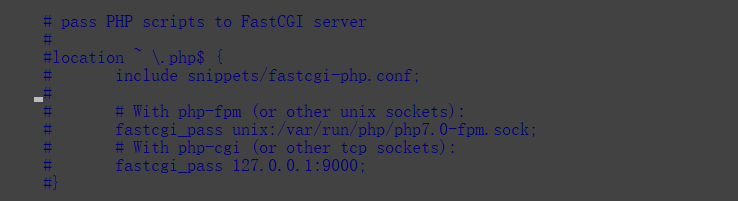
修改如下:
# pass PHP scripts to FastCGI server
#
location ~ \.php$ {
    include snippets/fastcgi-php.conf;
#
#   # With php-fpm (or other unix sockets):
    fastcgi_pass unix:/run/php/php7.2-fpm.sock;
#   # With php-cgi (or other tcp sockets):
#   fastcgi_pass 127.0.0.1:9000;
}
保存后,执行命令使nginx生效:
1 | systemctl reload nginx |
在/var/www/html创建index.php,输入内容:
1 |
|
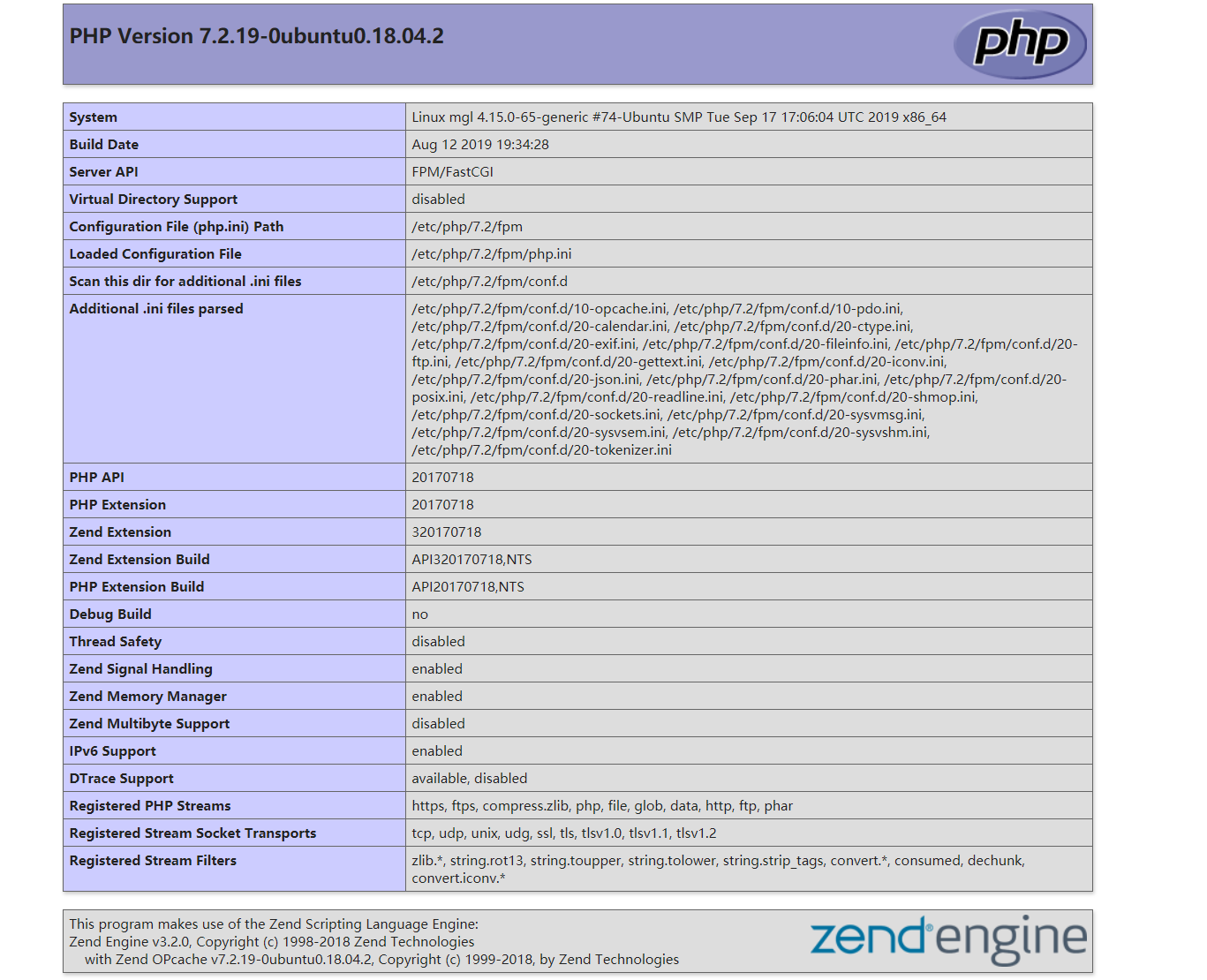
最后请求http://IP/index.php ,如下图所示,即表示环境配置成功!